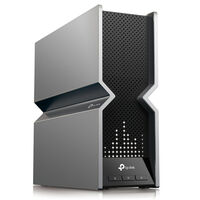
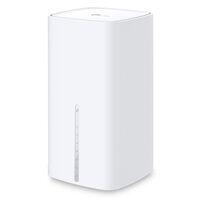
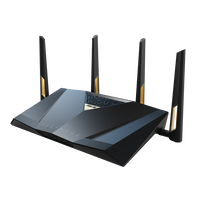
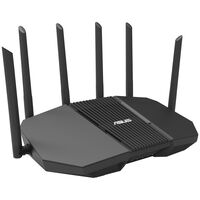
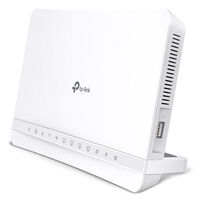
Routers connect your home network to the internet and distribute the connection to your devices via Wi-Fi or LAN. Discover routers for DSL, cable, and fibre as well as models with Wi-Fi 6, Wi-Fi 6E, and Wi-Fi 7.
Routers
A router gives you access to the internet at home – for gaming, streaming, and working from home. Here you can find suitable routers with different Wi-Fi standards, connection options, and frequency bands.
Wi-Fi Standards at a Glance
The supported Wi-Fi standard varies depending on the router:
| Feature |
Wi-Fi 6 |
Wi-Fi 6E |
Wi-Fi 7 |
| Frequency Bands |
2.4 & 5 GHz |
2.4, 5 & 6 GHz |
2.4, 5 & 6 GHz |
| Maximum Channel Width |
up to 160 MHz |
up to 320 MHz |
| Maximum Theoretical Data Rate |
up to 9.6 Gbit/s |
up to approx. 46 Gbit/s |
| 6 GHz Band |
No |
Yes |
| Multi-Link Operation (MLO) |
No |
Yes |
| Suitable For |
Gaming, streaming, working from home, and many Wi-Fi devices
|
Fast Wi-Fi connections over 6 GHz and environments with many Wi-Fi networks
|
Multi-gigabit networks, large data transfers, fast NAS systems, and demanding gaming
|
Keep in mind that your end devices must also support the respective Wi-Fi standard and the features you want to use. For example, if your router supports Wi-Fi 7 but your PC only supports Wi-Fi 6E, the connection will only use the features supported by both devices.
Important Router Features
-
QoS: Quality of Service allows you to prioritise specific devices or data traffic – for example, a gaming PC while downloads or streams are running at the same time.
-
VPN: Depending on the router, VPN connections can be established or VPN access can be provided for your own network.
-
VLAN: Allows different areas of a network to be logically separated, for example for office use, working from home, IoT devices, or separate networks.
-
Guest network: Provides visitors with separate Wi-Fi access without automatically granting them access to the main network.
-
Parental controls: Can limit access times or internet access for specific devices.
-
Firewall: Controls and filters network traffic between different networks.
Routers for Gaming
Gaming routers differ from conventional routers mainly through additional features for prioritising and managing network traffic. Gaming QoS or similar features can prioritise a gaming PC, console, or specific game traffic when other devices on the network are streaming, running large downloads, or transferring backups at the same time.
Some gaming routers also feature prioritised LAN ports, dedicated gaming dashboards for monitoring network performance and latency, or simplified settings for port forwarding and NAT. Gaming models are also often equipped with multi-gigabit ports and powerful hardware, although these features are not exclusive to gaming routers.
A gaming router does not automatically reduce ping to the game server, but it can help control bottlenecks and competing traffic within your own network, helping to maintain a more consistent connection while gaming.
Wi-Fi repeaters or mesh systems can be particularly useful if you want to improve the internet connection in areas of your home that your router cannot reach.
FAQ – Routers
How Many LAN Ports Should a Router Have?
This depends on how many devices you want to connect directly via network cable. A gaming PC, console, smart TV, or NAS each require a free LAN port. If your router does not provide enough ports, you can expand the wired network with an additional network switch.
What Is the Difference Between a LAN Port and a WAN Port?
LAN ports connect devices within your local network, such as PCs, consoles, or a NAS. The WAN port, on the other hand, connects the router to the internet connection or to an upstream modem or network termination device.
Can I Use Any Router with DSL, Cable, or Fibre?
This depends on how your internet connection is provided. Many routers can be connected via their WAN port to an existing modem or network termination device and can therefore be used independently of the underlying access technology. However, if the router is to be connected directly to DSL, cable, or fibre, the model must support the required connection technology.
Where Should a Wi-Fi Router Be Positioned?
A Wi-Fi router should ideally be positioned centrally and in an open area within the desired coverage zone. Walls, furniture, metal surfaces, and other electronic devices can weaken the wireless signal. An elevated and unobstructed position can therefore help improve Wi-Fi coverage.
When Should I Extend My Wi-Fi with Mesh or Repeaters?
Extending your Wi-Fi can be useful if a single router cannot reliably cover every room or floor. Mesh systems or compatible repeaters can increase Wi-Fi coverage and provide a better connection in areas with weak reception.