


Webcams
Webcams and cameras for video calls, streaming, and conferences provide clear video transmission on PCs and laptops.
3 Results
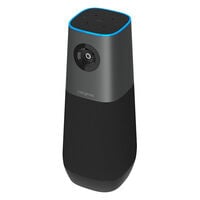
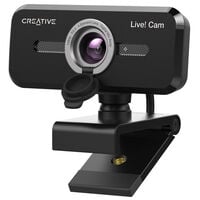
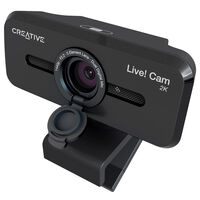
Webcams and Cameras for Video Calls, Streaming, and Online Meetings
With a webcam or conference camera, you can make video calls, join online meetings, stream, and record videos on your PC or laptop. Depending on the model, devices differ in areas such as resolution, frame rate, microphone, autofocus, and additional features such as automatic image correction or head tracking.
Important Buying Criteria for a Webcam or Camera
Resolution
The resolution of a webcam determines the level of video quality. Full HD is sufficient in most cases for video calls and meetings. 4K is particularly suitable for streaming and other professional applications.
Frame Rate
The frame rate indicates how many frames are displayed per second. The higher the frame rate, the smoother movements appear. 30 FPS is sufficient for meetings, while 60 FPS is recommended for high-quality streams.
Autofocus and Image Correction
Autofocus ensures that you remain automatically in focus. Image correction features are useful if you want the webcam to adapt automatically or via manual settings to different lighting conditions.
Microphone
Many webcams feature an integrated microphone. However, quality varies from model to model. Headsets with microphones or separate microphones usually provide better audio quality.
Connectivity and Compatibility
Webcams connect to your PC via USB-A or USB-C. Depending on the model, a driver update may be required, while other webcams work via plug-and-play.
Use Case and Features
For occasional video calls, a basic webcam is often sufficient. For streaming, larger meetings, or conference rooms, additional features such as zoom, pan, head tracking, or a wider field of view can be useful.
| Use Case | Useful Features |
|---|---|
| Video Calls / Working from Home | Full HD, 30 FPS, autofocus, microphone |
| Streaming | Full HD at 60 FPS or 4K, good low-light performance |
| Professional Meetings | Full HD or 4K, good microphone, auto-framing |
| Groups / Conference Rooms | Wide field of view, multiple microphones, person tracking |
| Flexible Recording | Tripod mount, pan and tilt functionality |
FAQ – Webcams and Cameras
Do I Need Additional Drivers for a Webcam?
Many webcams are detected automatically by the operating system and can be used straight away. Some models require additional drivers or software to access all available features. Always check the manufacturer’s specifications.
Can I Use a Webcam with Teams, Zoom, or Discord?
Many webcams can be used with common video conferencing, chat, and streaming applications. The camera must be recognised by the operating system and supported by the respective software.
Can I Use a Webcam for Streaming or Video Recording?
Yes. Many webcams can be used for livestreaming and video recording as well as video calls. The available features and recording quality depend on the respective model and the software being used.
Where Should I Position My Webcam?
For a natural perspective, the webcam should ideally be positioned at eye level or slightly above. Make sure your face is sufficiently lit and avoid placing a strong light source directly behind you.
Can I Use Multiple Webcams with One PC at the Same Time?
Multiple cameras can generally be connected to a PC. Whether they can be used at the same time depends on the software, the available connections, and the performance of the system.
How Can I Protect My Webcam from Unintended Recording?
Some webcams feature an integrated cover or mechanical privacy shutter for the lens. You can also use your operating system settings to specify which applications are allowed to access the camera.